 Cloak 2.0 is live
How to Lock a Website on Mac
Some websites hold as much as any app. Your Gmail, your ChatGPT chats, your bank, a Google Drive folder. Lock the whole browser and you lose the whole web. Leave it open and anyone at your Mac can read them.
Cloak locks single websites. Open a locked site and Cloak covers the window until you confirm with Touch ID. Every other site works as normal.
Website lock is new in Cloak 2.1.
How to lock a website
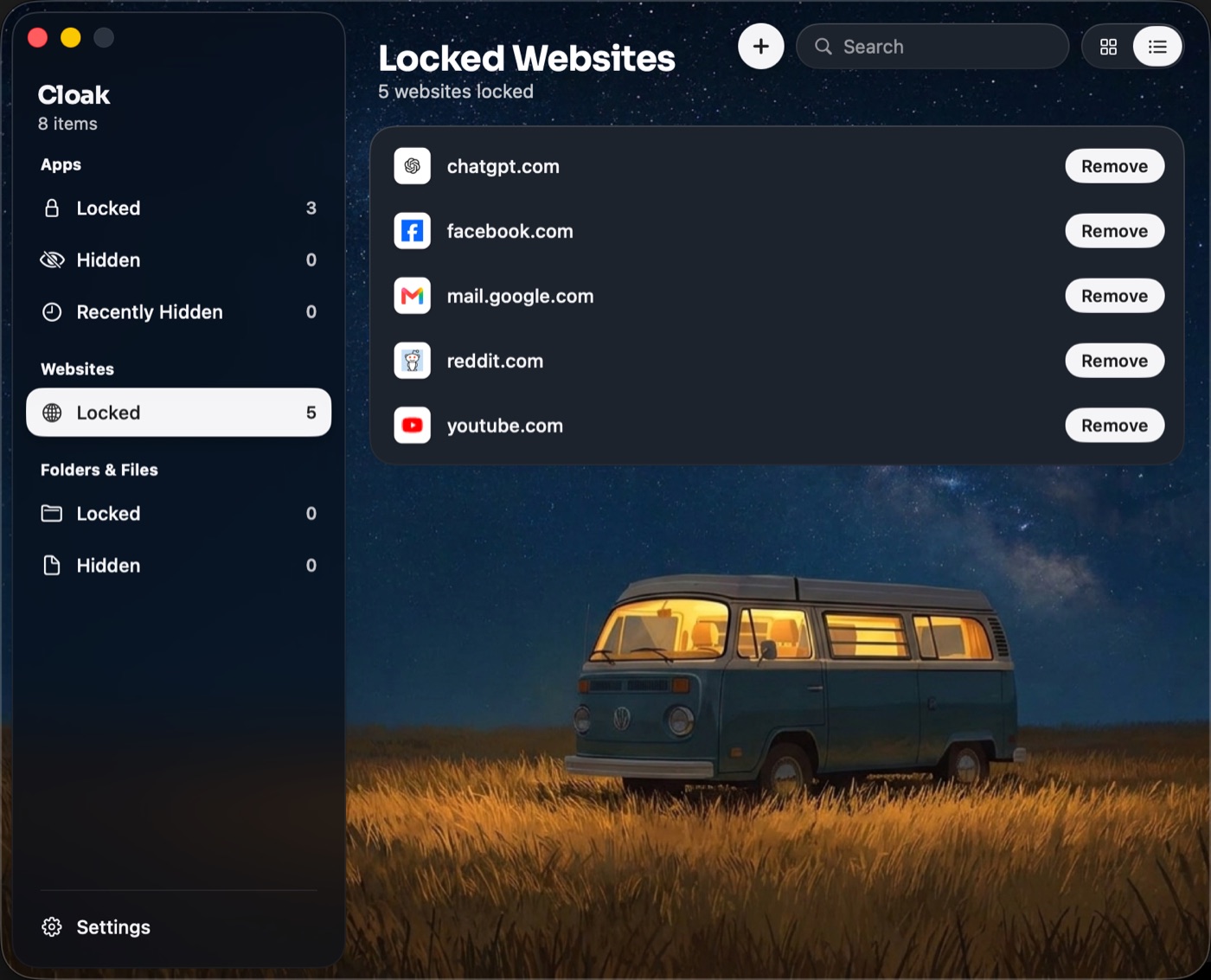
- Open Cloak. In the sidebar, under Websites, click Locked.
- Click +.
- Type the address, like gmail.com, and press Return. The site joins the list, ticked. Add as many as you like.
- Click Lock 3 websites. The button counts the sites you picked.
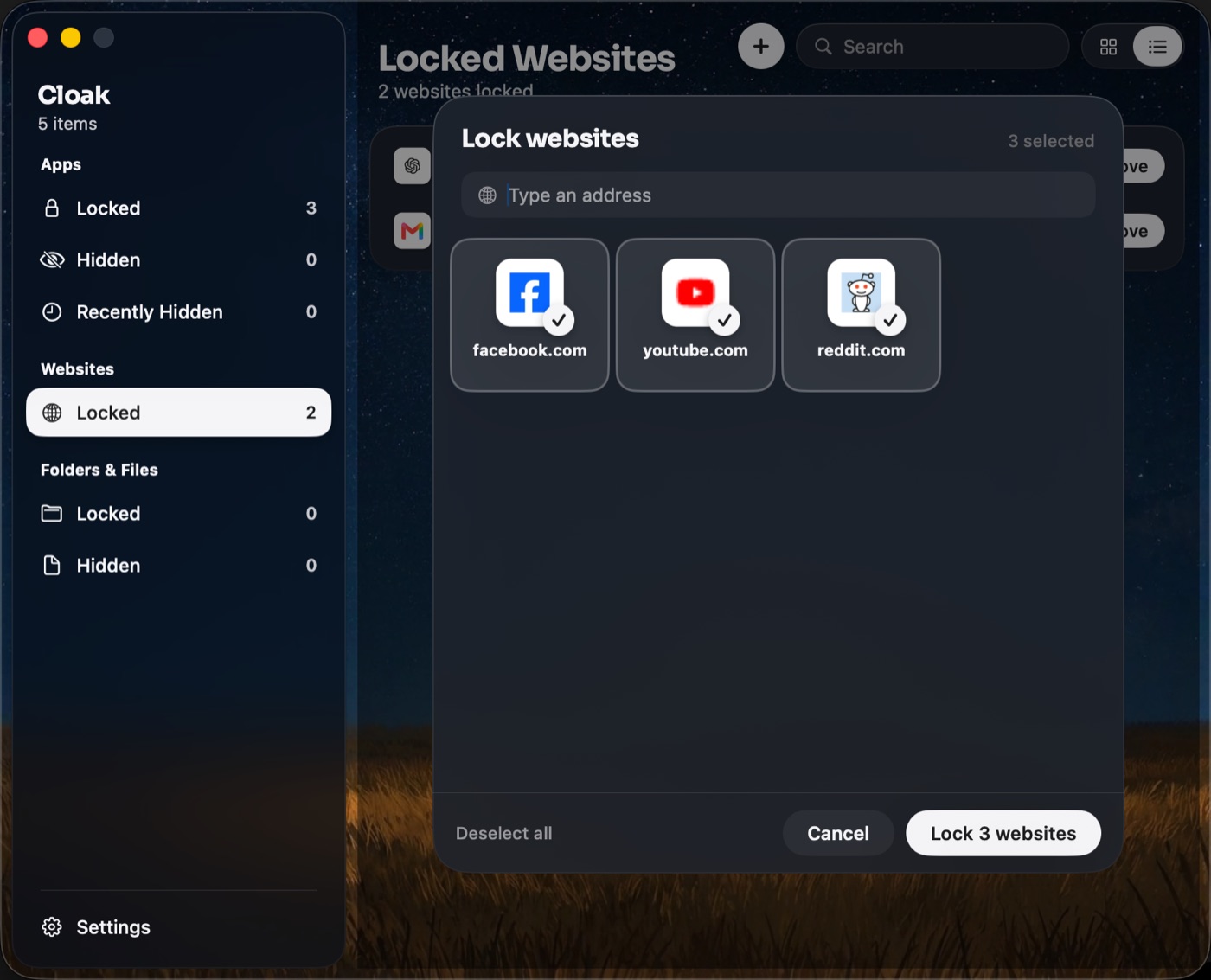
The first time, Cloak asks for one quick step. To lock websites, it needs to see which site is open in your browser. Click Continue, then switch on Cloak in System Settings › Privacy & Security › Accessibility. You only do this once, and it covers every browser.
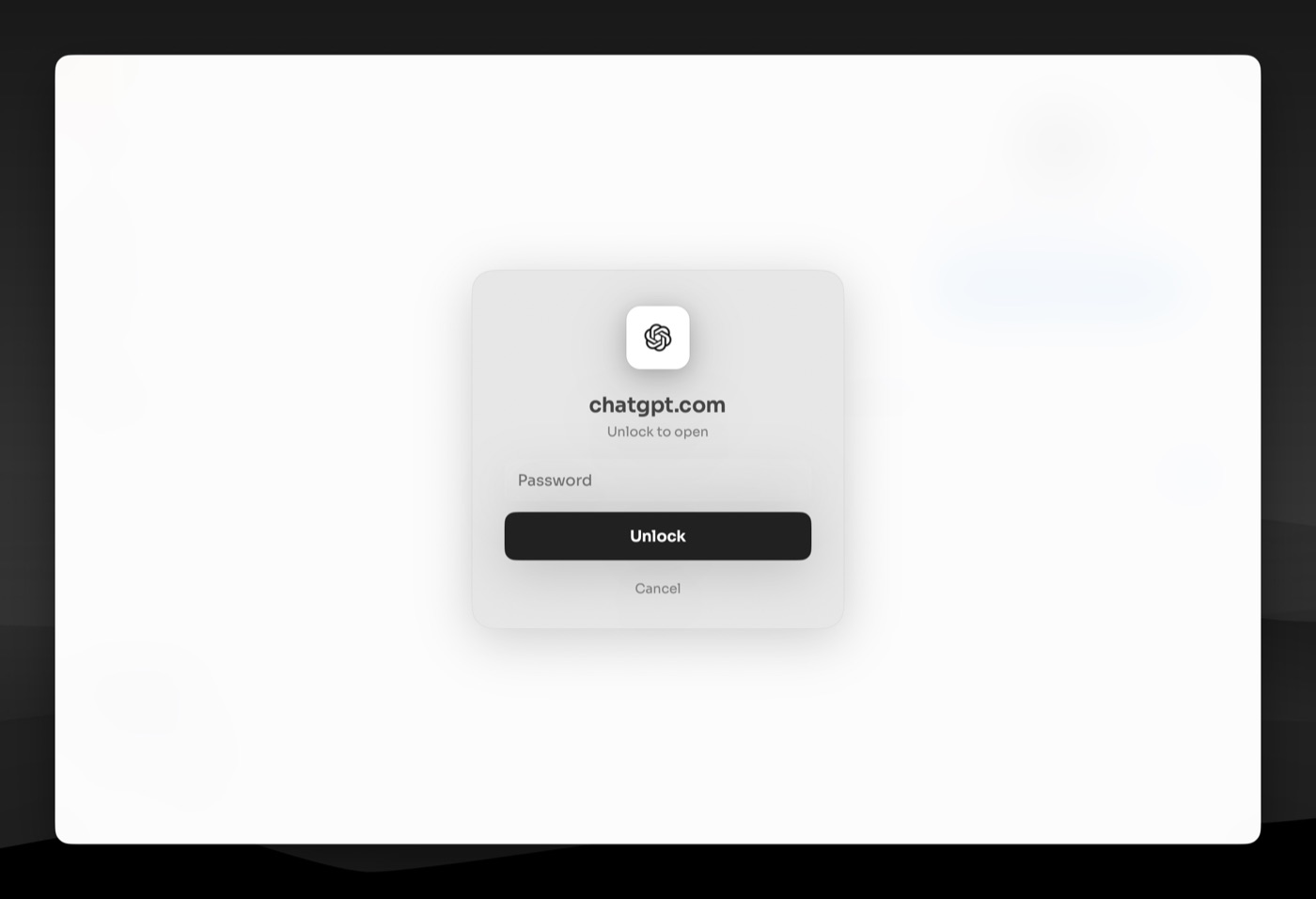
What someone sees
Open a locked site and Cloak covers the browser window with the same unlock box as a locked app. Touch ID or your Cloak password opens it. Cancel closes the tab.
Once unlocked, the site stays open while you use it. Cloak locks it again when:
- your Mac sleeps or the screen locks,
- it has not been used for a while (both are set under Lock again in Settings),
- you close its tab or quit the browser.
Switching tabs, minimizing the window or moving to another desktop changes nothing.
Good to know
- Gmail: type gmail.com. Cloak knows Gmail lives at mail.google.com.
- Every page counts. Locking chatgpt.com locks every chat on it.
- Just one page. Paste a full address, like one Google Drive folder, to lock only that page and the pages under it.
- Works in Safari, Chrome, Firefox, Edge, Brave, Opera, Vivaldi and Tor.
- Private windows too. Safari and Firefox private windows and Chrome incognito windows are covered, and Tor is private all the time.
- Cloak has to be running, the same as for locked apps.
Locked, not blocked
A website blocker stops a site for everyone, you included. Cloak does not block anything. The site is still yours: it opens the moment you unlock, and it stays covered for anyone else.
Removing a site
Go to Websites › Locked and click Remove next to the site.
Related
Get Cloak: a one-time purchase, with a 14-day refund.
Questions people ask
Which browsers does it work in?
Safari, Chrome, Firefox, Edge, Brave, Opera, Vivaldi and Tor. Safari and Firefox private windows and Chrome incognito windows are covered too.
Is this a website blocker?
No. A blocker stops a site for everyone, you included. Cloak locks it: the site stays covered until you use Touch ID or your Cloak password, then it opens as normal.
Can I lock one page instead of a whole site?
Yes. Type the full address, like one Google Drive folder. Cloak locks that page and the pages under it, and the rest of the site opens freely.
Does Cloak see my browsing history?
No. It checks the address of the page on screen against your locked sites, on your Mac. It keeps no history and sends nothing anywhere.
What does Cancel do?
It closes the tab, so the site never shows.
Lock anything on your Mac
Cloak locks apps behind Touch ID, hides them completely, and encrypts folders with AES-256. Everything stays on your Mac. No account, one-time purchase.
Get Cloak