 Cloak 2.0 is live
How to Lock Apps on a Schedule on Mac
Some apps only need a lock part of the time. Games during homework hours. Slack and Mail at the weekend. Messages overnight on a Mac the whole family uses. Locking them all day means unlocking them all day.
With a schedule, Cloak locks an app only at the times you pick. The rest of the time it opens like any other app, no Touch ID needed.
Schedules are new in Cloak 2.0.
How to set a schedule
- Open Cloak and go to Locked apps. If the app is not there yet, click + and pick it.
- Right-click the app and choose Lock on a Schedule.
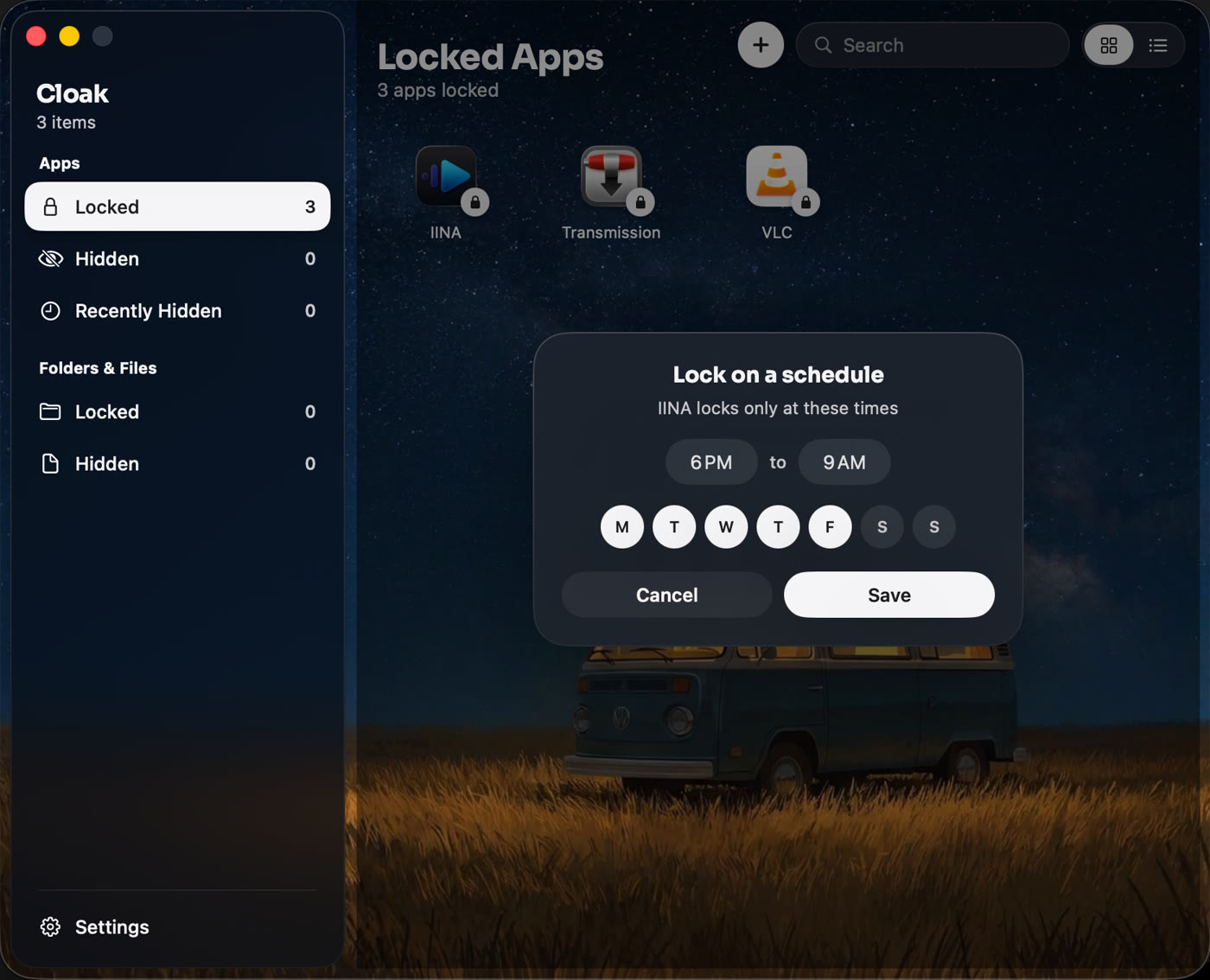
- Pick when the lock starts and ends, for example 6 PM to 9 AM.
- Click the days you want. Days that are filled in are locked.
- Click Save.
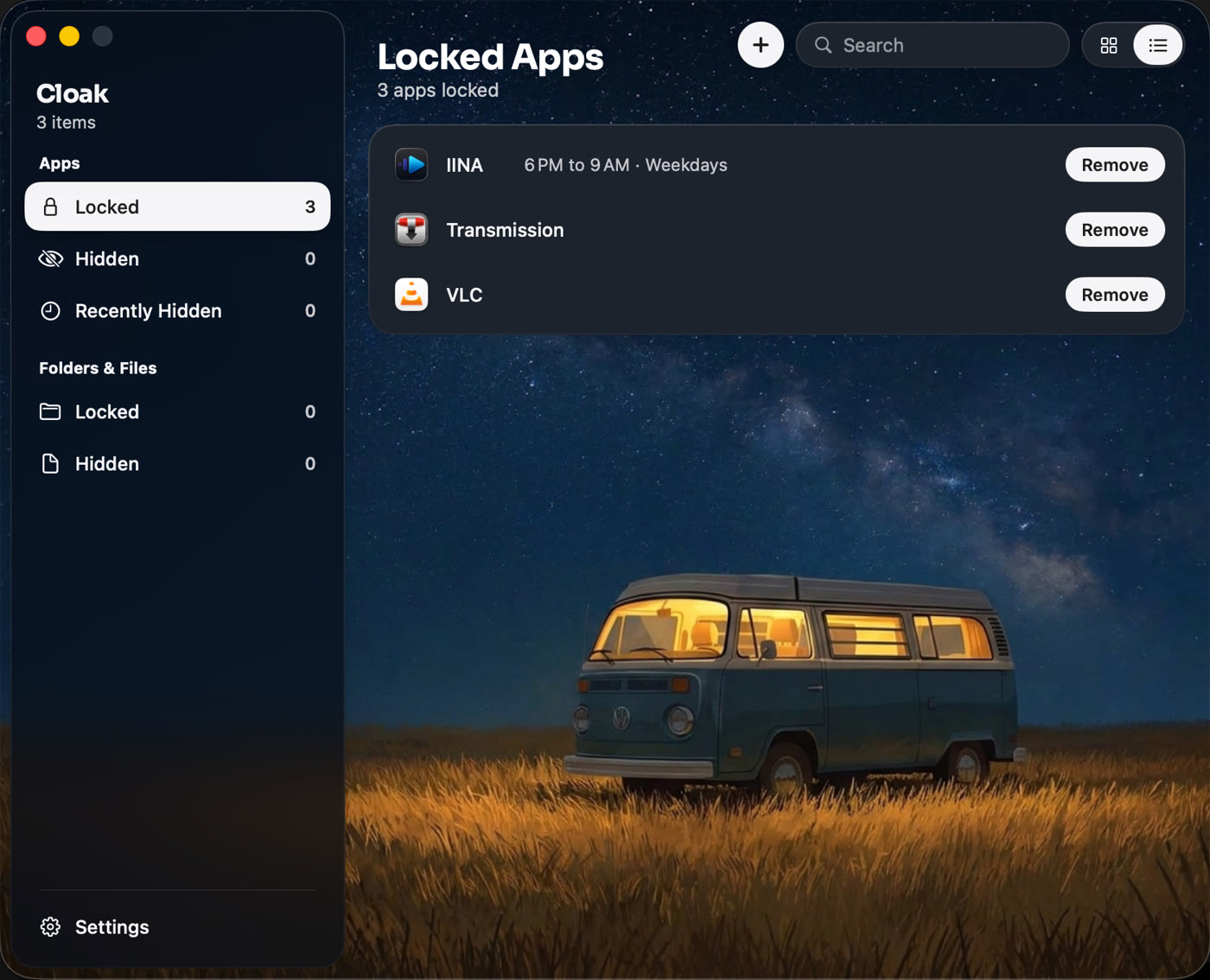
The app now shows a small clock and its hours in Locked apps, for example “6 PM to 9 AM · Weekdays”.
Ideas that work well
- Games, 6 PM to 9 AM on school nights. Homework first, games at the weekend.
- Slack and Mail, all day Saturday and Sunday. Work stays at work.
- Messages or WhatsApp, 10 PM to 7 AM every day. Nobody reads your chats while you sleep.
- A browser, during school hours on a child’s Mac.
Changing or removing a schedule
Right-click the app and choose Change Schedule. Change the hours or days and save. To lock the app all the time again, click Remove schedule, always lock.
Good to know
- The schedule follows your Mac’s clock and time zone.
- An app already open when the locked hours start keeps running until it is quit. The next open asks for Touch ID.
- Cloak itself always needs your Touch ID or password, so nobody can change the schedule but you.
Related
Get Cloak: a one-time purchase, with a 14-day refund.
Questions people ask
Can a schedule run past midnight?
Yes. Set it from 6 PM to 9 AM, for example, and the app stays locked overnight. The morning part counts as part of the day the schedule started.
What happens if the app is open when the locked time starts?
If you opened it before the schedule started, it keeps running. The next time it is opened inside the locked hours, Cloak asks for Touch ID.
How do I go back to always locked?
Right-click the app in Locked apps, choose Change Schedule, then Remove schedule, always lock.
Is this the same as Screen Time?
No. Screen Time limits how long an app is used and anyone with the Screen Time passcode can change it. Cloak locks the app behind your Touch ID or Cloak password at the hours you set.
Lock anything on your Mac
Cloak locks apps behind Touch ID, hides them completely, and encrypts folders with AES-256. Everything stays on your Mac. No account, one-time purchase.
Get Cloak