 Cloak 2.0 is live
What's New in Cloak 2.0
Cloak 2.0 is the biggest update since launch. It has a new look, and it adds six things people asked us for: a fake crash, lock schedules, a shortcut that locks the app in front, Lock with Cloak in Finder, a way to use a hidden app without unhiding it, and seven skins.
If you already have Cloak, 2.0 is a free update. Everything you locked or hid stays exactly as it was.
Fake crash
Turn on fake crash for a locked app, and anyone who opens it sees the Mac’s own “quit unexpectedly” box. It looks like the app is broken, so there is no lock to wonder about. To open it yourself, hold Option and click Reopen.
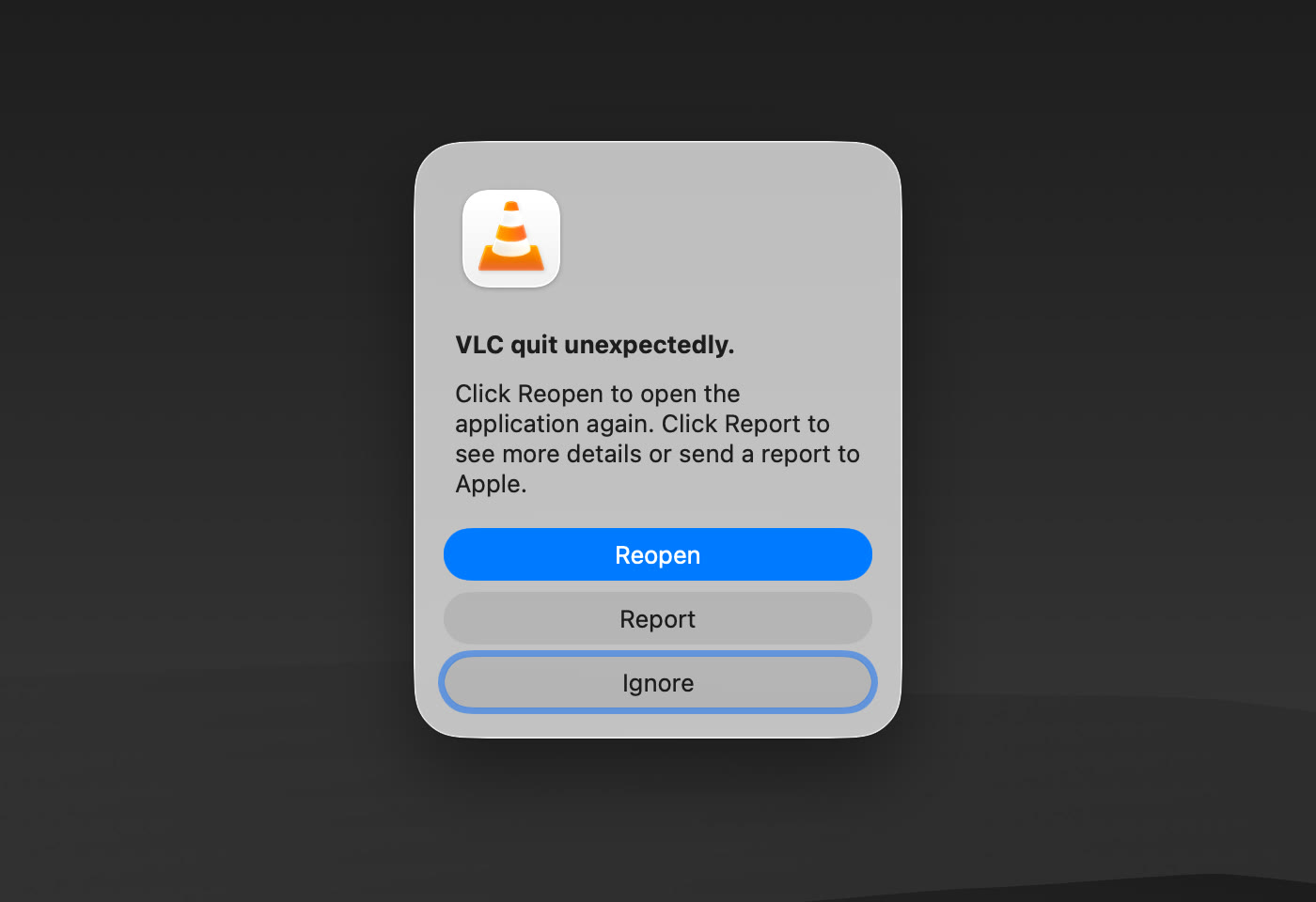
How to make an app fake a crash on Mac
Lock on a schedule
Lock an app only at the times you choose. Games locked on school nights, work apps locked at the weekend, chat apps locked overnight. Outside those hours the app opens freely.
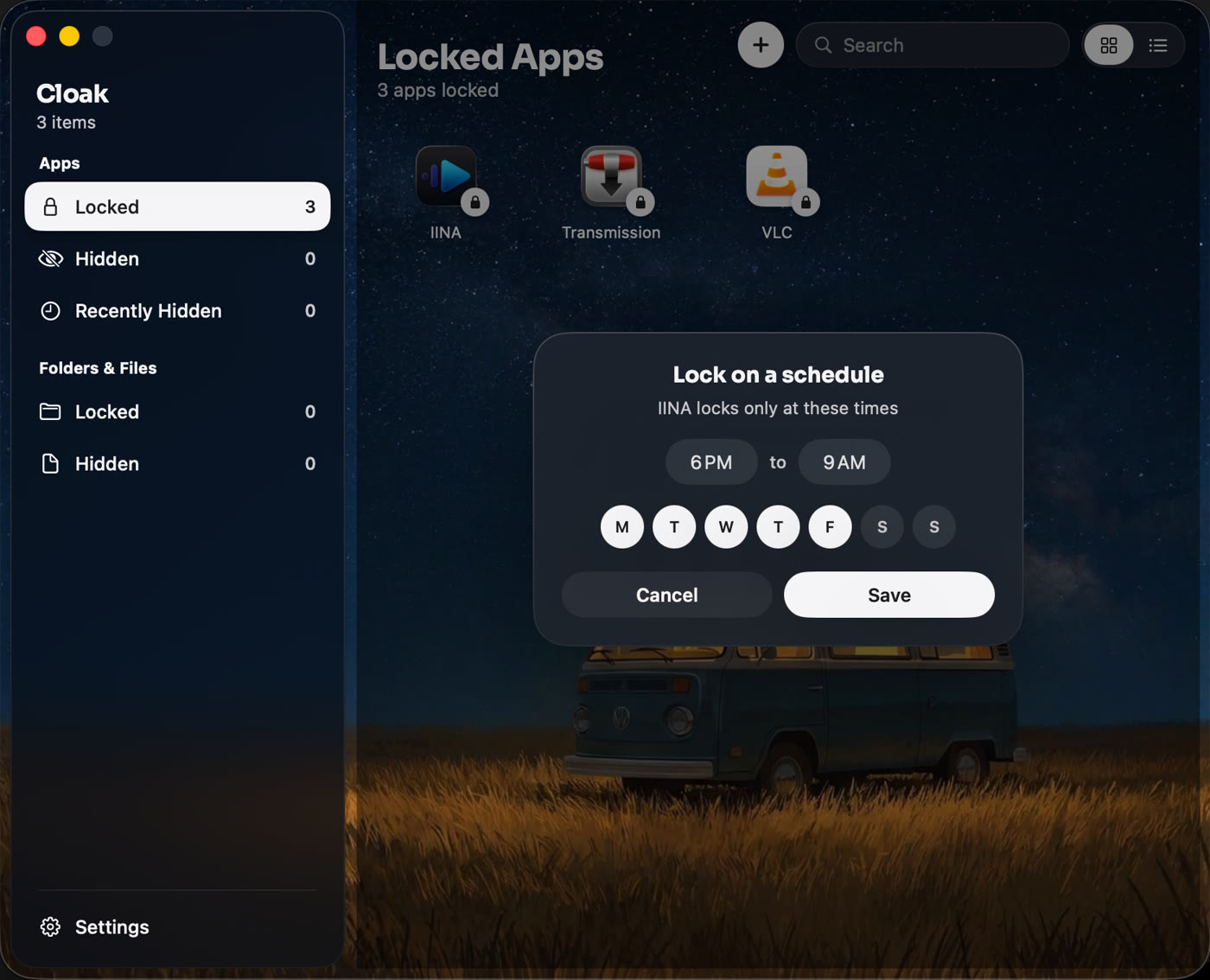
How to lock apps on a schedule
Lock the app in front
Set a keyboard shortcut once. Then press it in any app, and Cloak locks that app and closes it on the spot. Handy when someone walks up behind you.
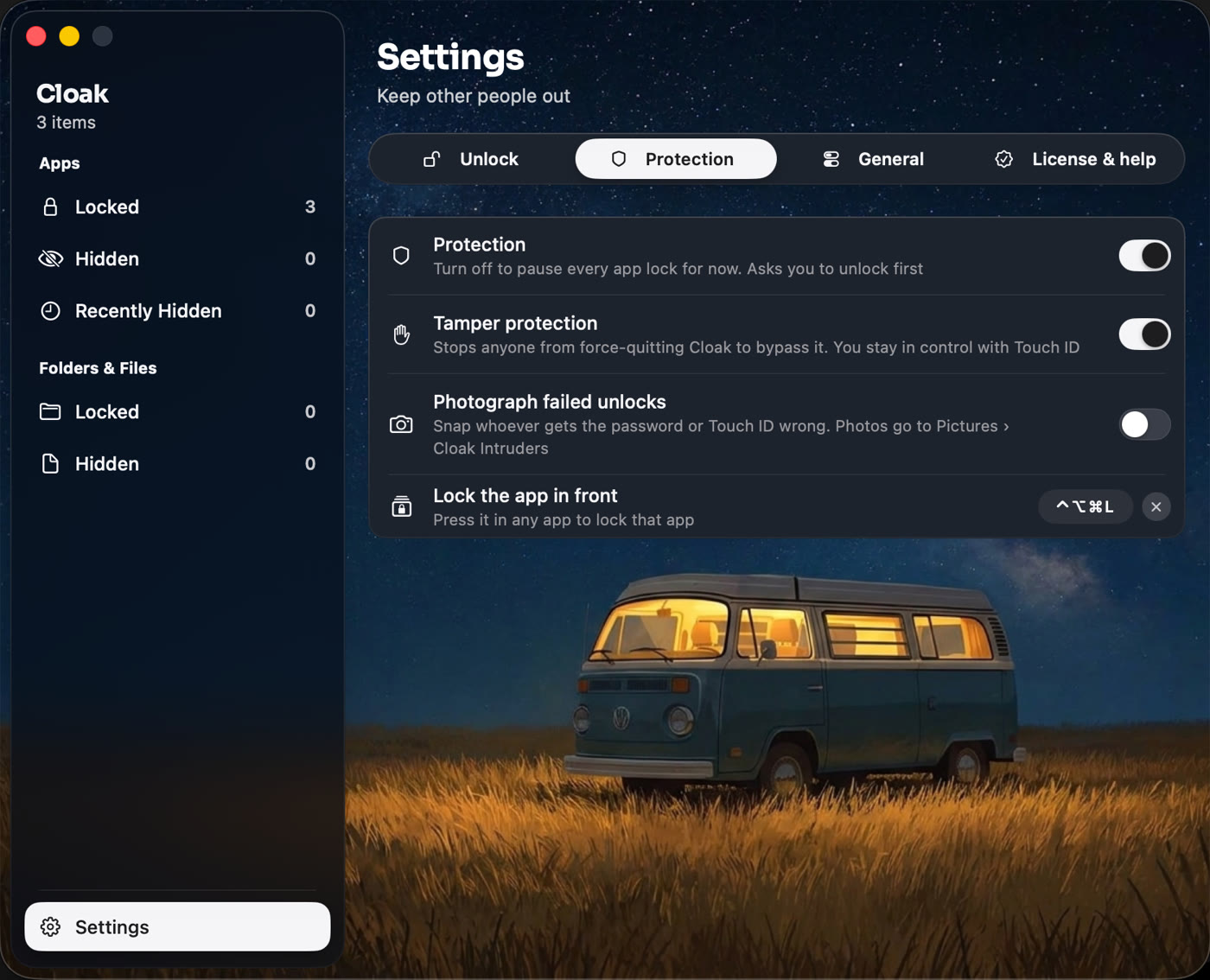
How to lock an app with a keyboard shortcut
Lock with Cloak in Finder
Right-click any folder or file in Finder and choose Lock with Cloak or Hide with Cloak. No need to open Cloak first. It is off until you turn it on, so nobody using your Mac sees the menu unless you want it there.
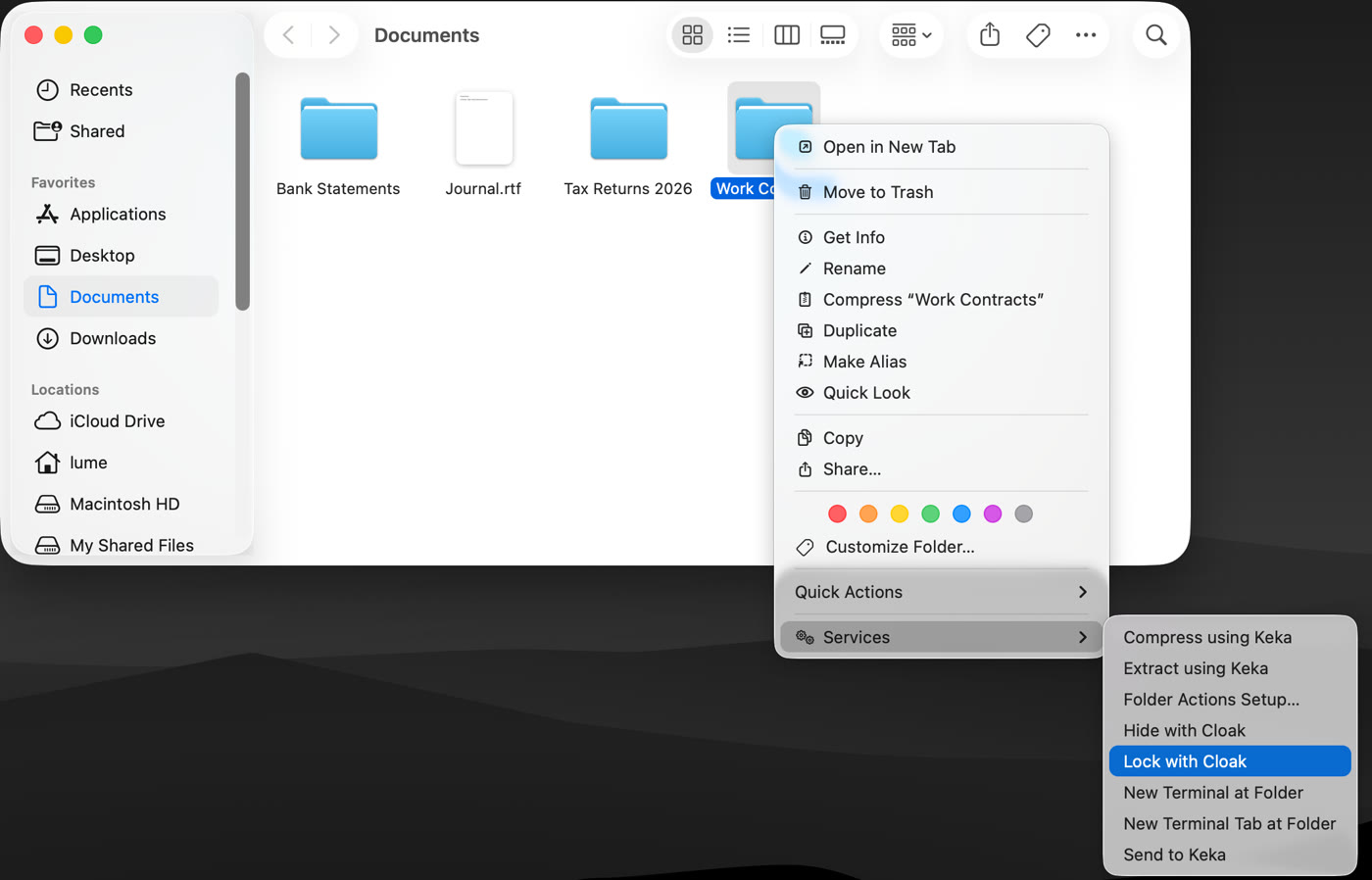
How to lock a folder from Finder
Open a hidden app without unhiding it
A hidden app used to come back to the Applications folder while you used it. Now you can open it straight from its hidden, encrypted copy. It never shows up in Applications, and it stays hidden when you quit.
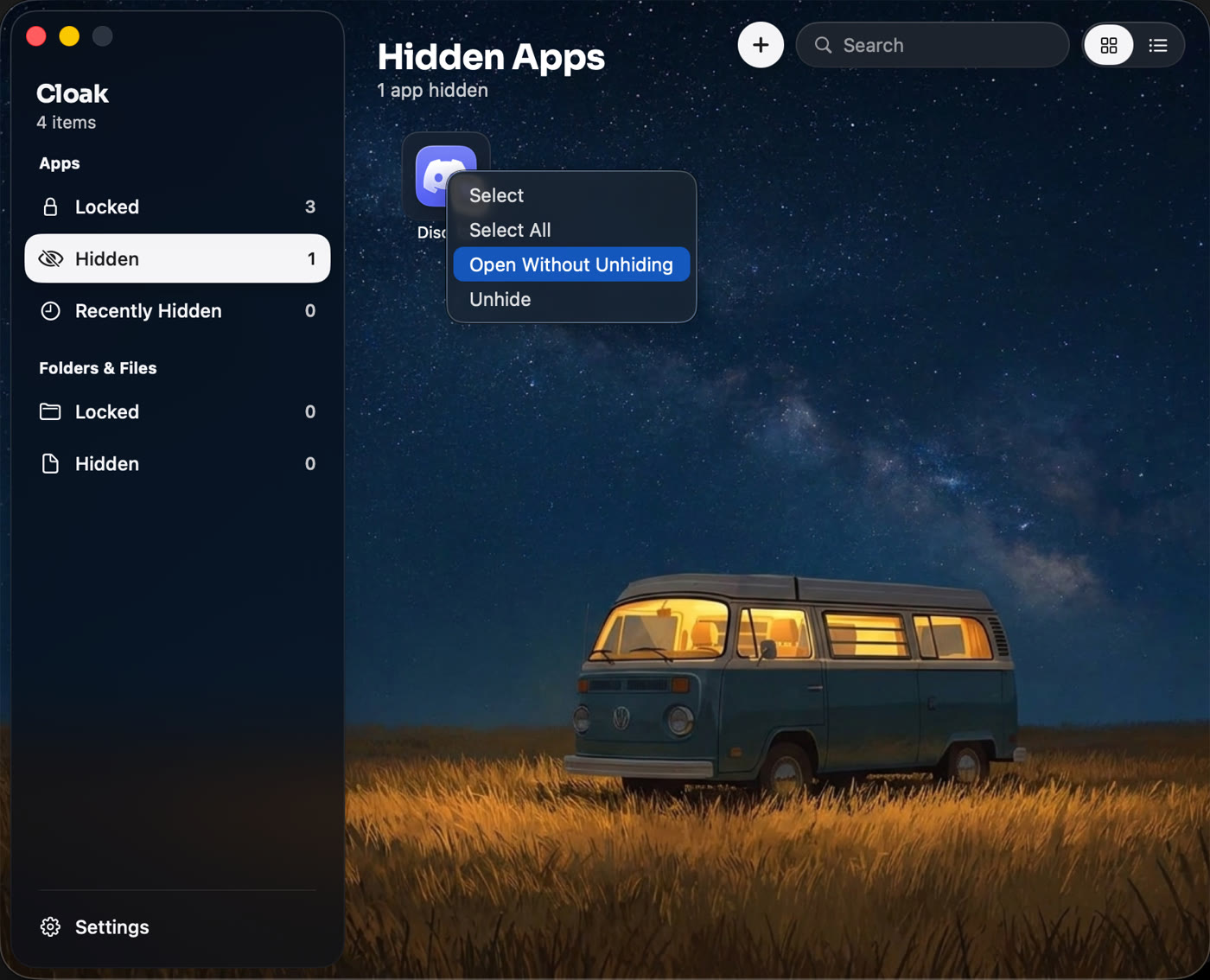
How to open a hidden app without unhiding it
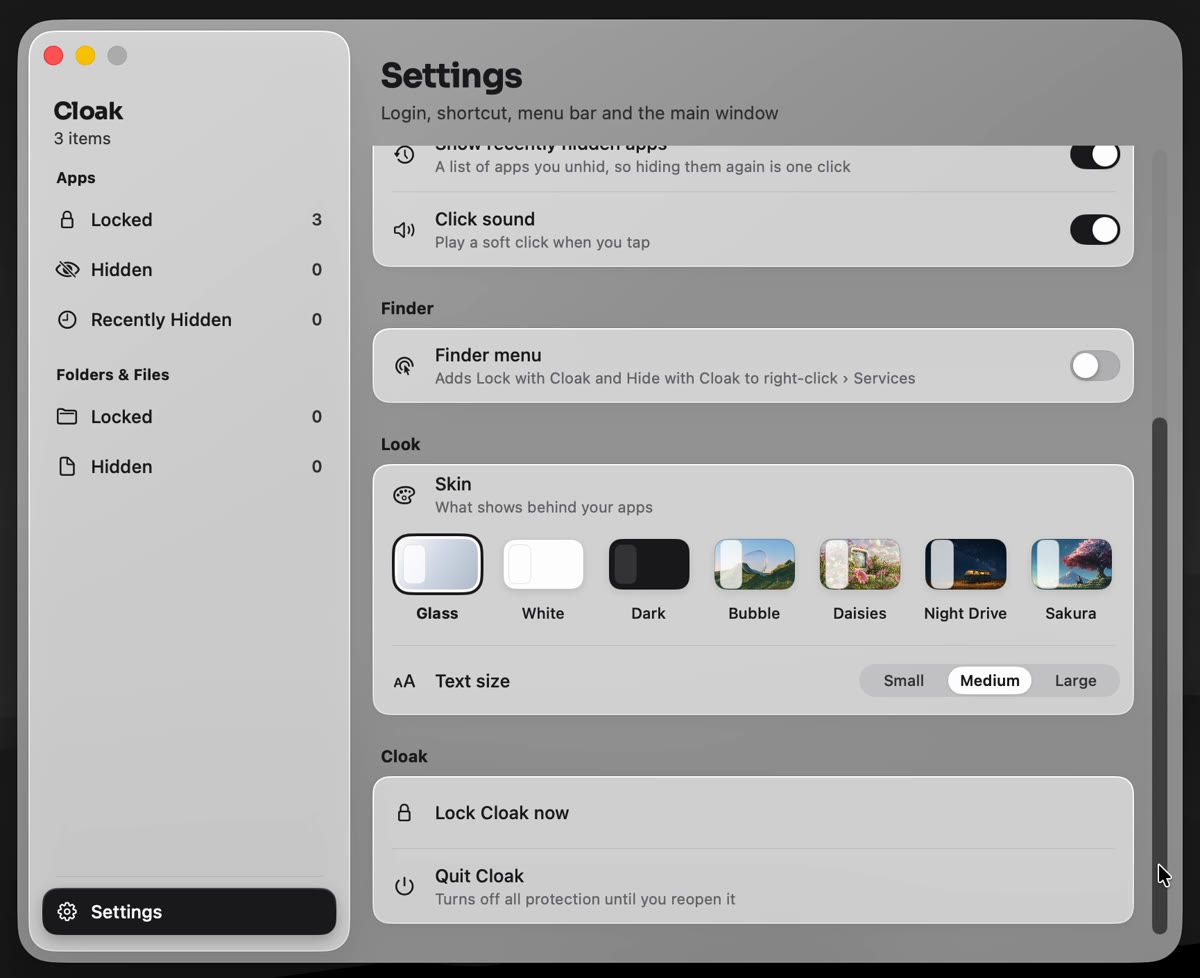
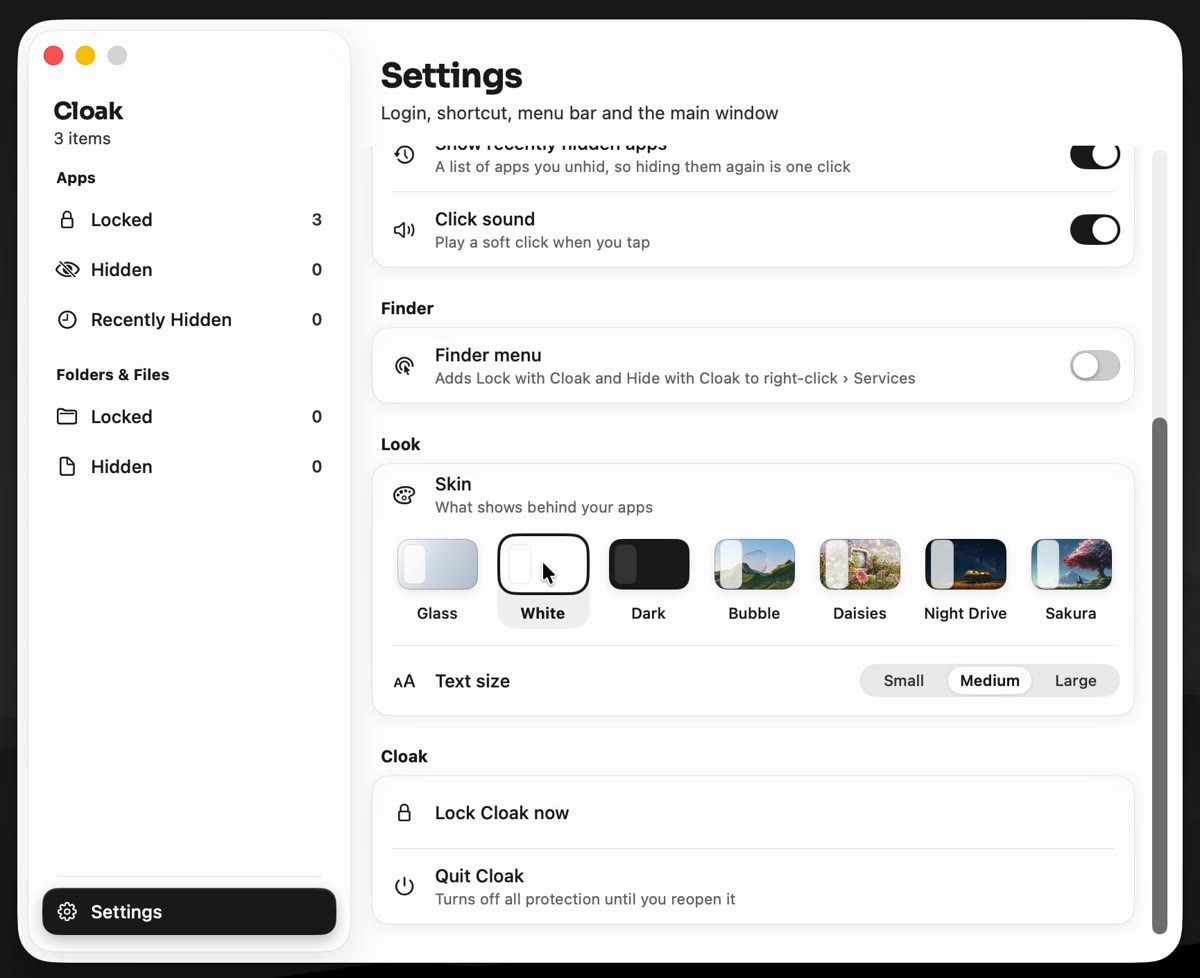
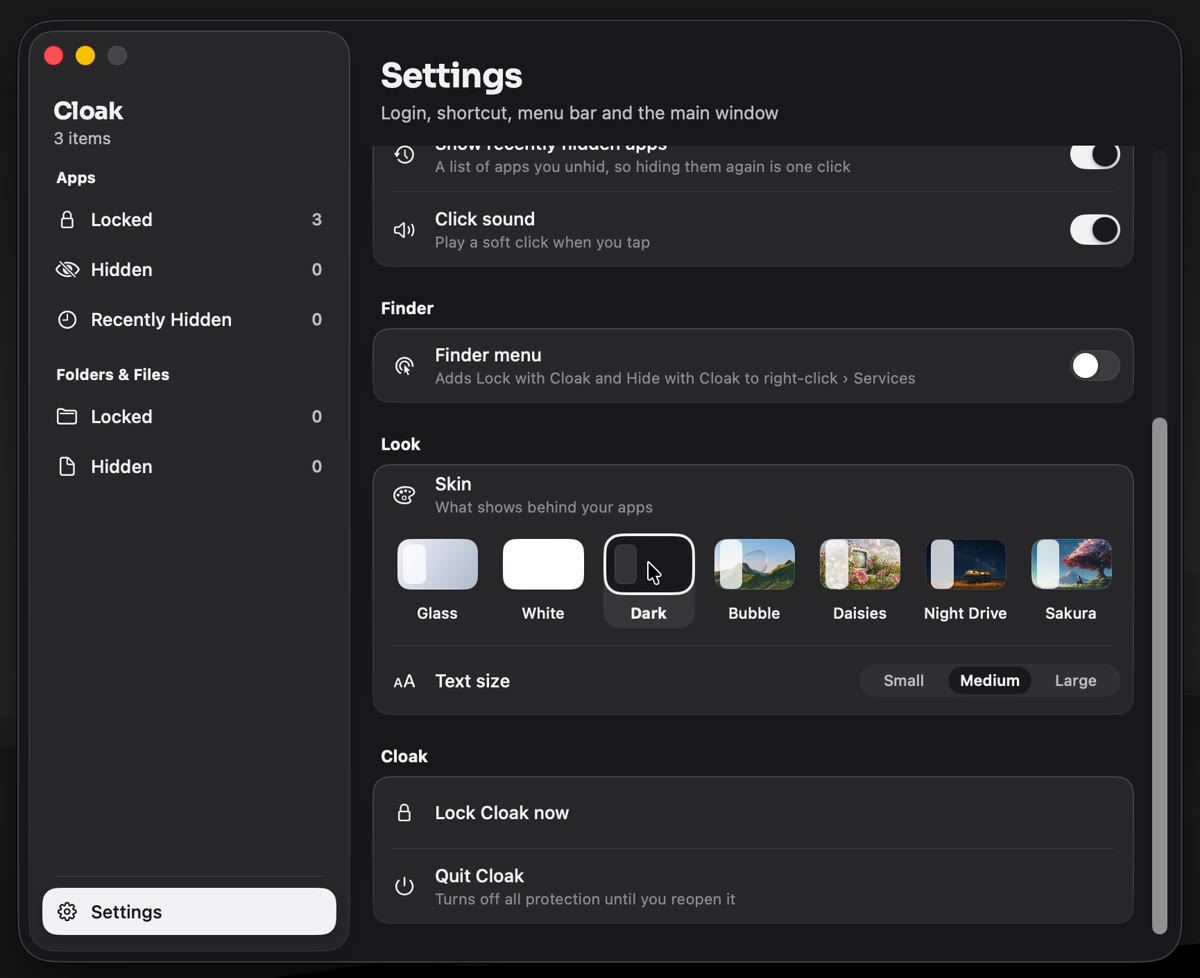
Seven skins and a new design
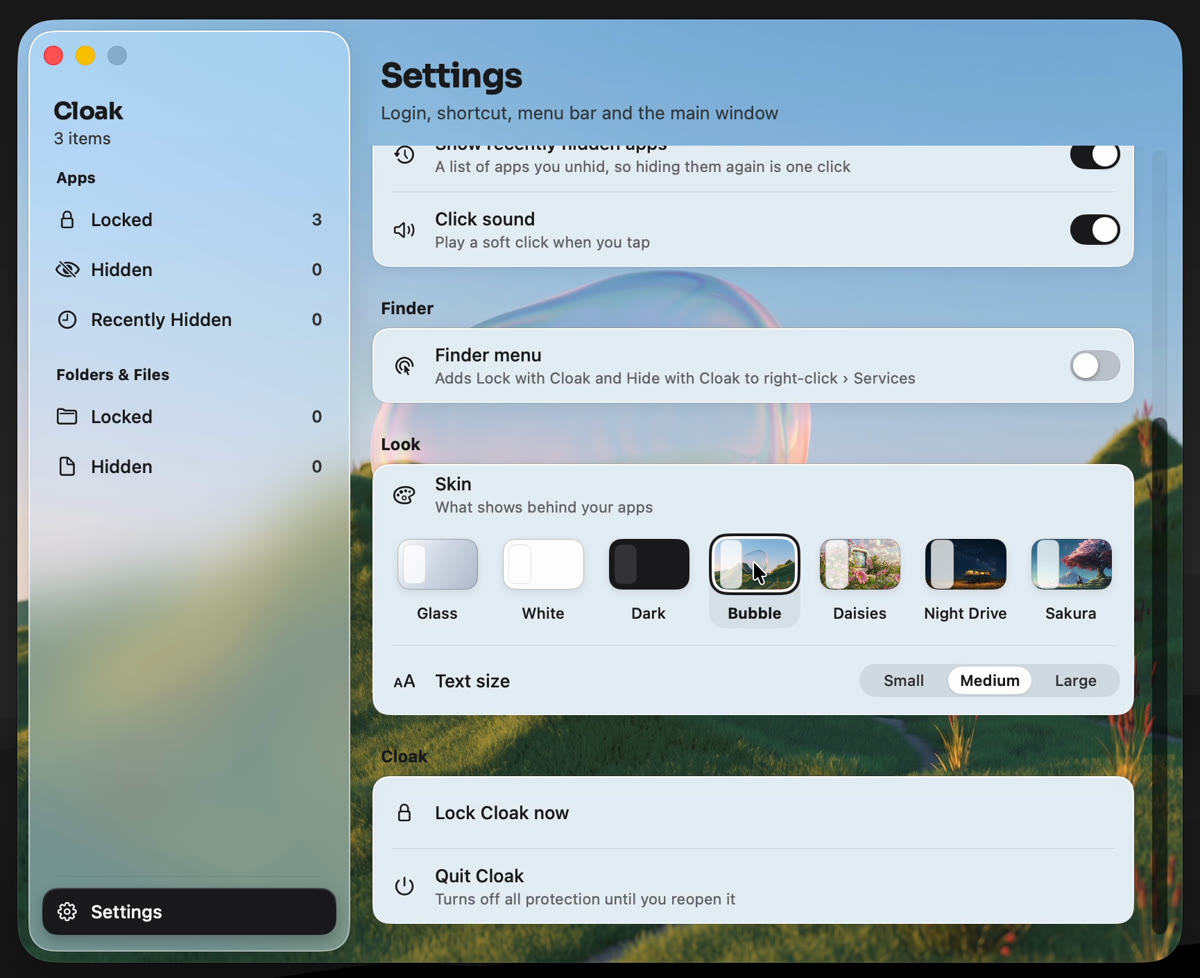
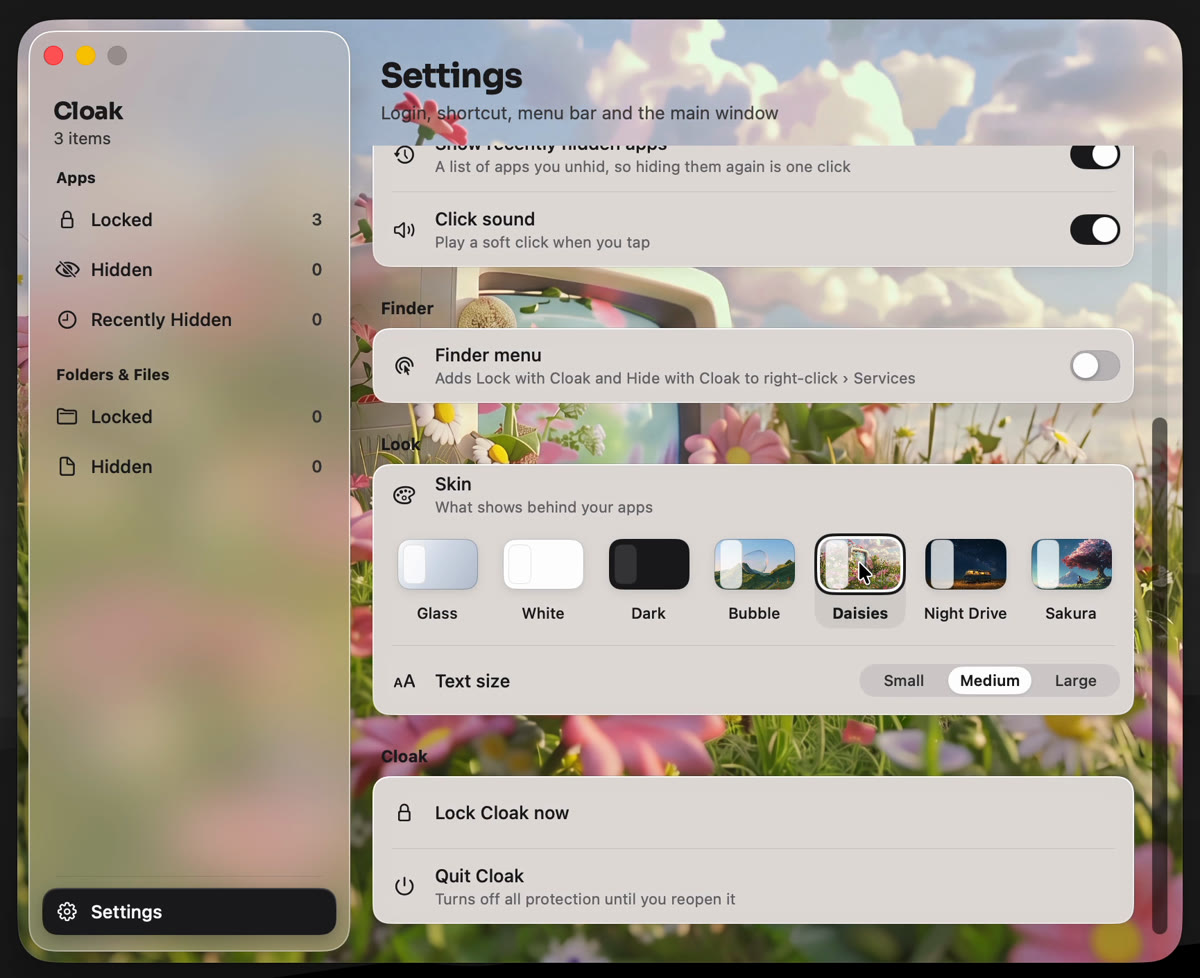
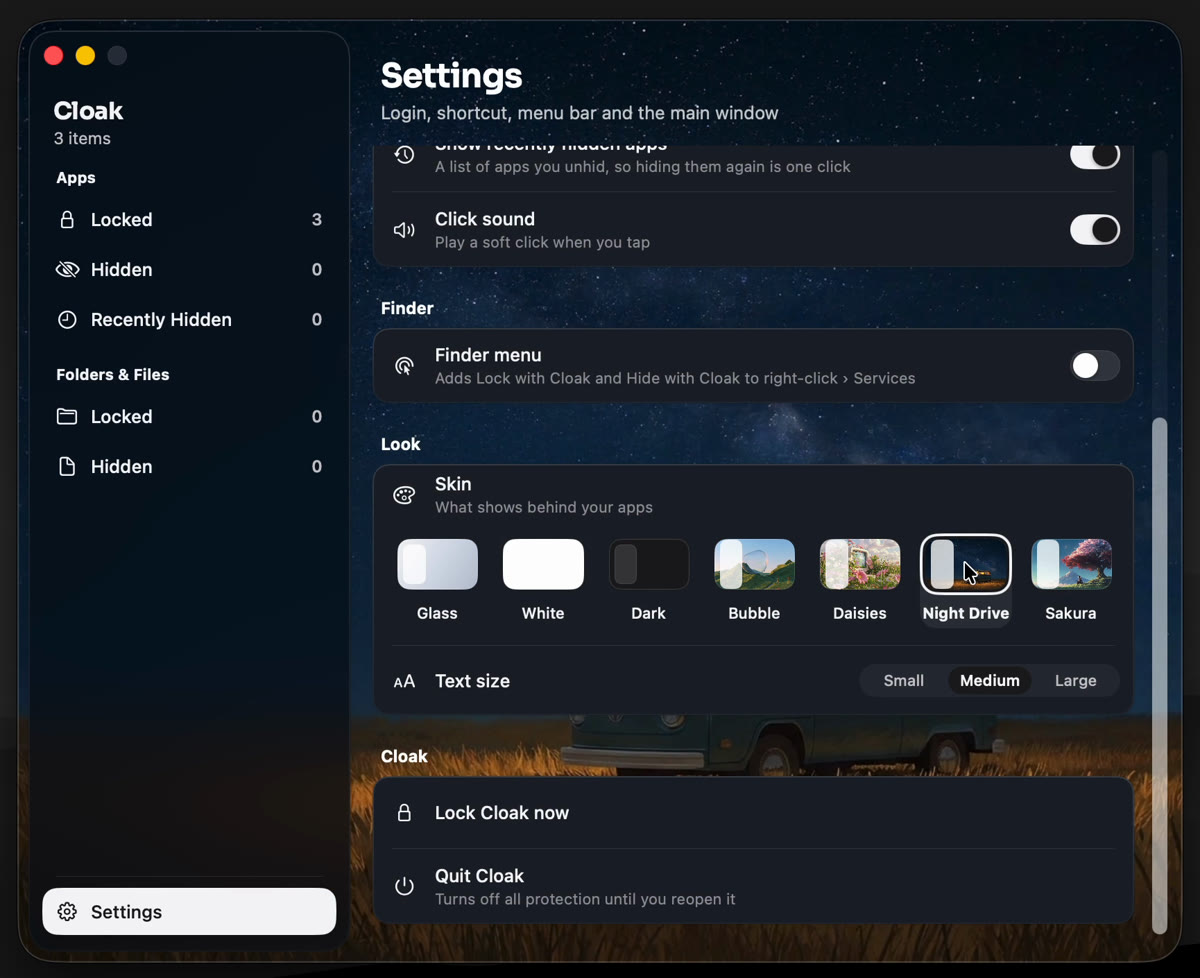
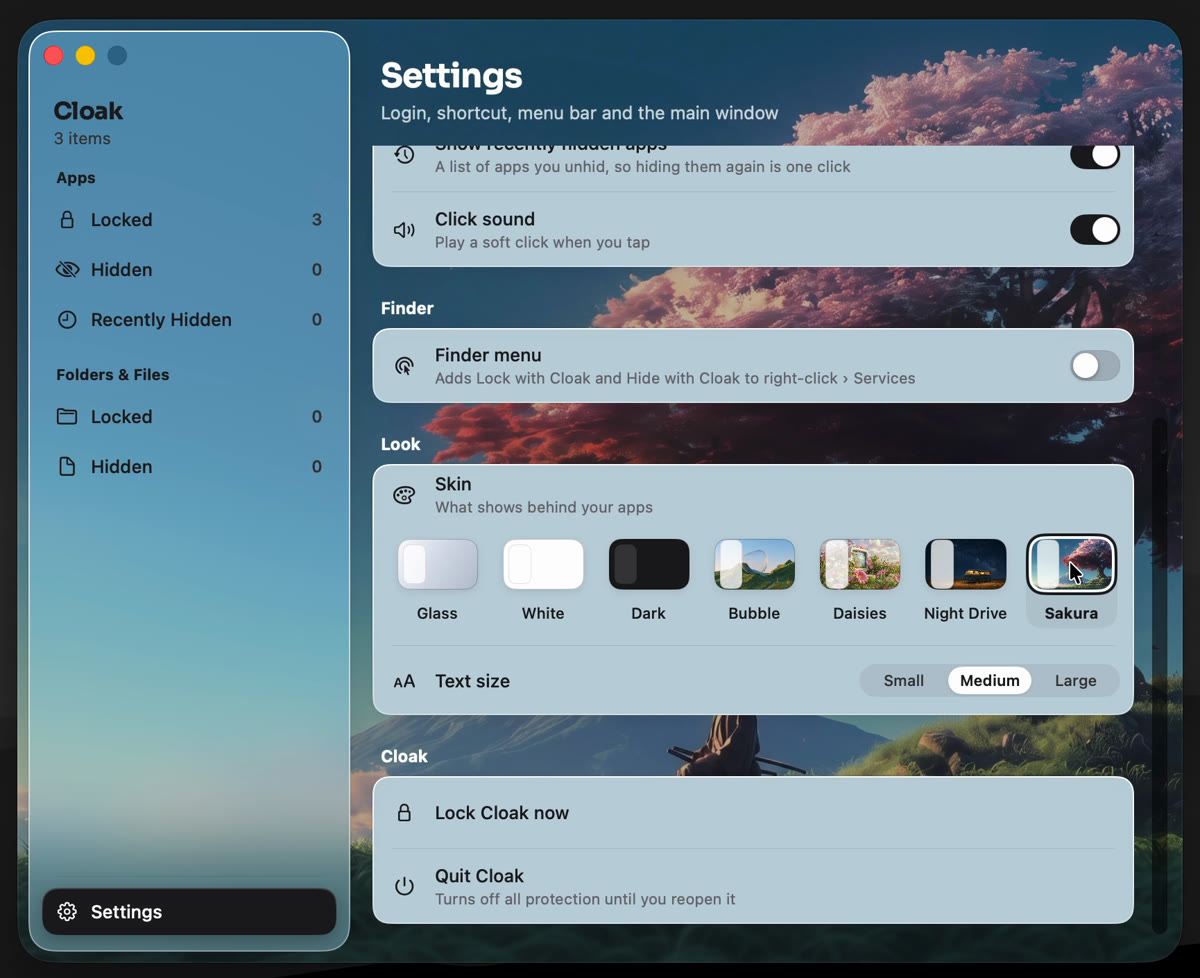
Cloak 2.0 has a new design with a floating sidebar and settings split into tabs. You can also change how it looks: Glass, White, Dark, Bubble, Daisies, Night Drive or Sakura. Open Settings, go to General, and pick one under Skin. There is a text size setting there too.
How to get it
Already have Cloak? It updates itself, free. New to Cloak? It is a one-time purchase with free updates and a 14-day refund. Get Cloak 2.0.
Questions people ask
Is Cloak 2.0 a free update?
Yes. If you already bought Cloak, 2.0 is free. Cloak updates itself.
Does Cloak 2.0 keep my locked apps, folders and settings?
Yes. Everything you locked or hid before stays locked or hidden after the update. Nothing needs setting up again.
Which Macs does Cloak 2.0 run on?
Macs with Apple silicon running macOS 13 or later.
Lock anything on your Mac
Cloak locks apps behind Touch ID, hides them completely, and encrypts folders with AES-256. Everything stays on your Mac. No account, one-time purchase.
Get Cloak